A powerful system that required too much hidden knowledge
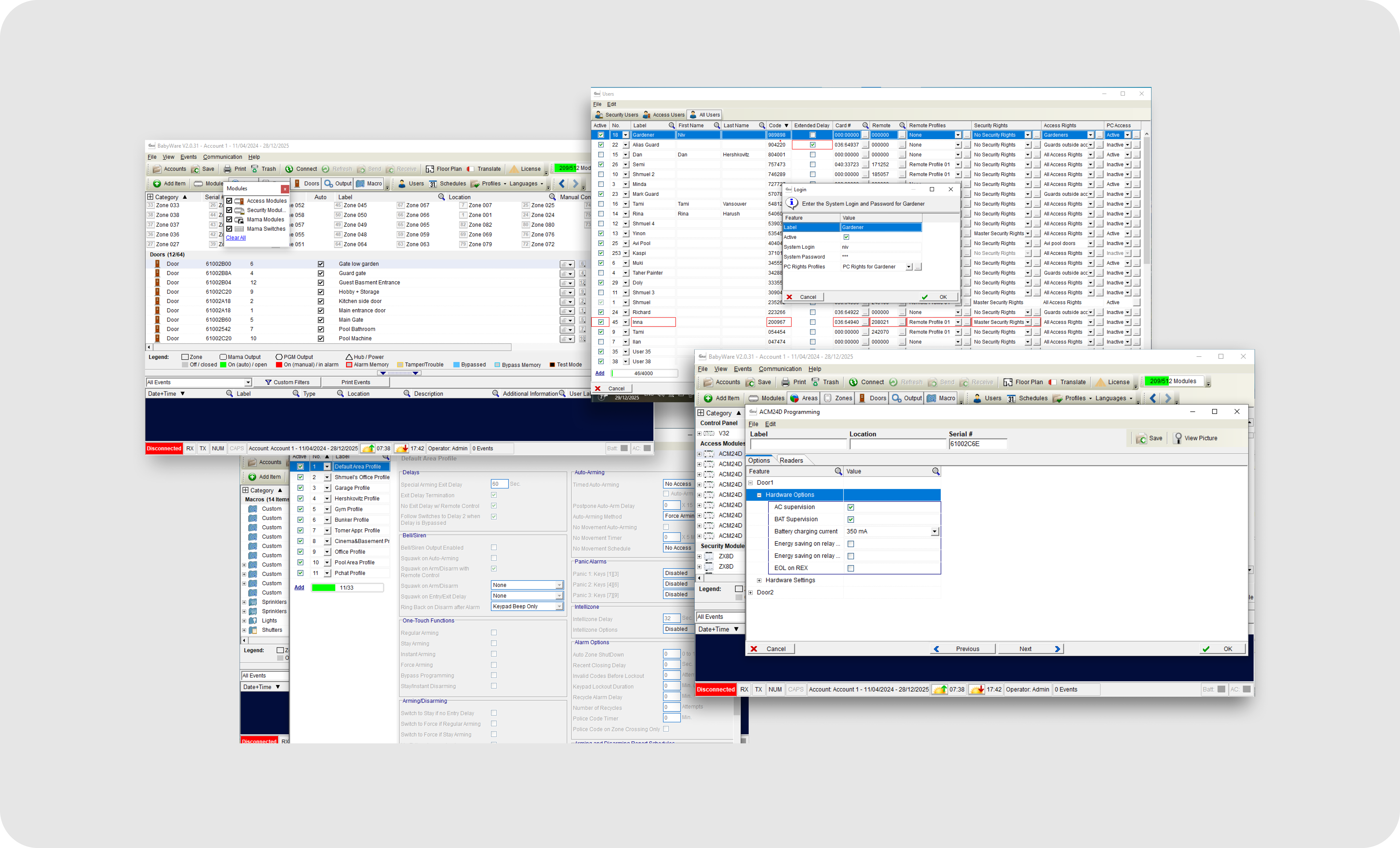
BabyWare was powerful. It supported a wide range of professional configuration tasks across zones, users, modules, access, schedules, profiles, areas, panel settings, and system programming.
But the experience relied heavily on the installer’s memory and expertise. To complete a configuration task, installers had to know what was required, what was optional, what had already been configured, what was still missing, what had been saved, and which settings depended on other parts of the system.
The main UX problem was not visual density alone. It was the lack of visible workflow state.
Installers needed clearer answers to basic but critical questions:
What the installer asks — and what is the UX problem?
“What has already been configured? What is still missing?”
No visible progress state
“Which fields are required before this setup is valid?”
Requirements stay hidden
“Did my changes save?”
Save is ambiguous
“Where do I see the status of the device, zone, or system while I work?”
Status lives away from the work
“Which troubles or indications need attention right now?”
Troubles surface too late
“What changed inside this device or configuration area?”
Changes leave no trace
“What still blocks handoff?”
Handoff readiness is unclear
“What happens when something fails?”
Failure is opaque
In a system this large, uncertainty becomes expensive. Every unclear state can create rework, support dependency, installation delays, or risk during handoff.
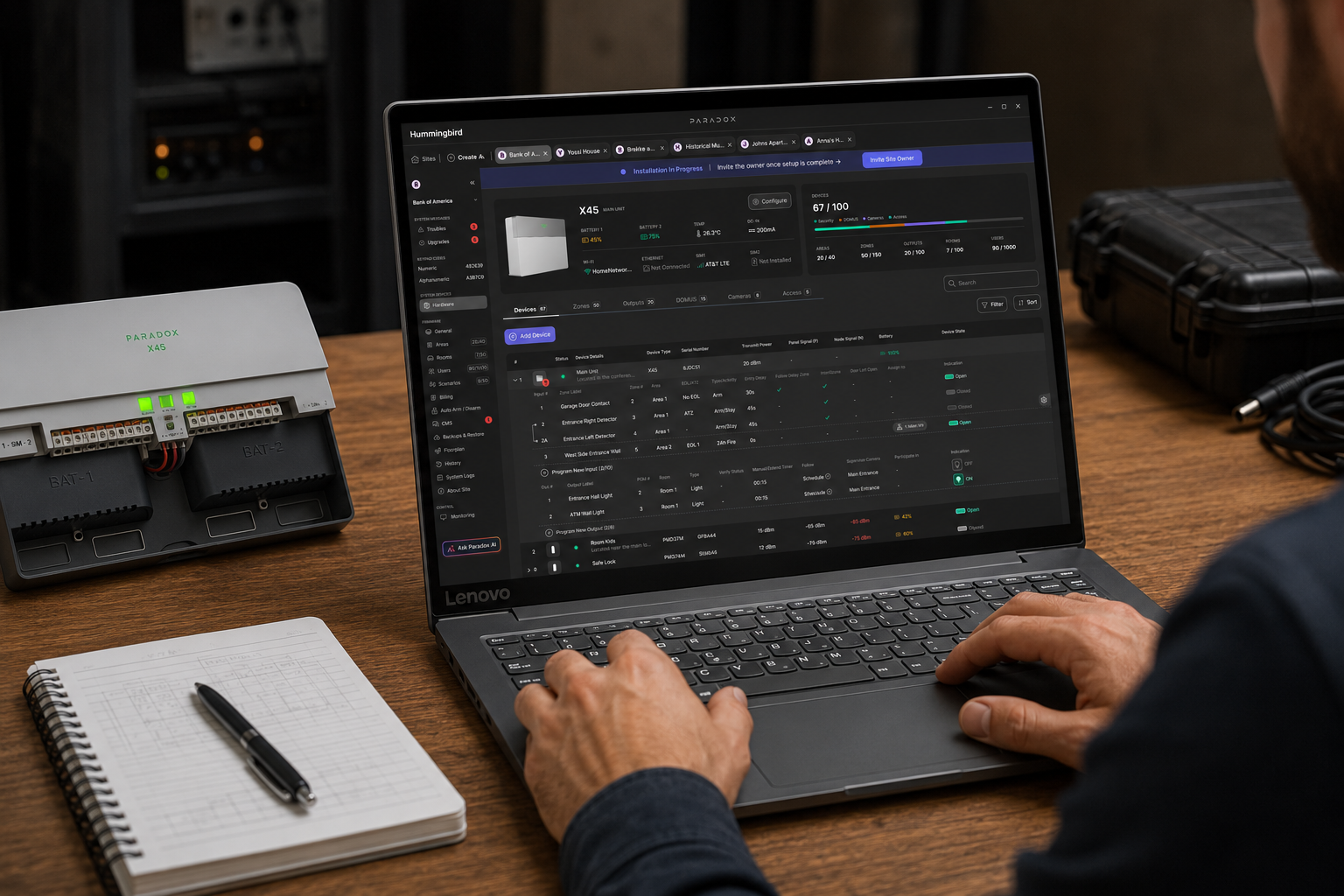
This was not the first time we saw this problem. In BlueEye PRO, we already learned that installers need confidence while configuring a system: what is connected, what still needs attention, what is ready, and what blocks handoff. Hummingbird brought the same problem into a larger, denser desktop environment where the cost of hidden state was even higher.
From product scope to design direction
My role included translating a broad product vision into a structured design scope — breaking the desktop software into work areas, estimating effort with the team, and helping define a clearer direction for the interface.
I worked across product structure, UX flows, AI-assisted exploration, design-system thinking, and final interface direction.
Mapping the product scope into phases and work areas
Reviewing the legacy experience and identifying workflow fragmentation
Carrying installer-confidence lessons from BlueEye PRO into the PC experience
Exploring desktop layout models for dense professional workflows
Defining a direction around local save, live feedback, visible troubles and professional control
Connecting the work to the Nest Design System and rebuilding the final direction for portfolio clarity
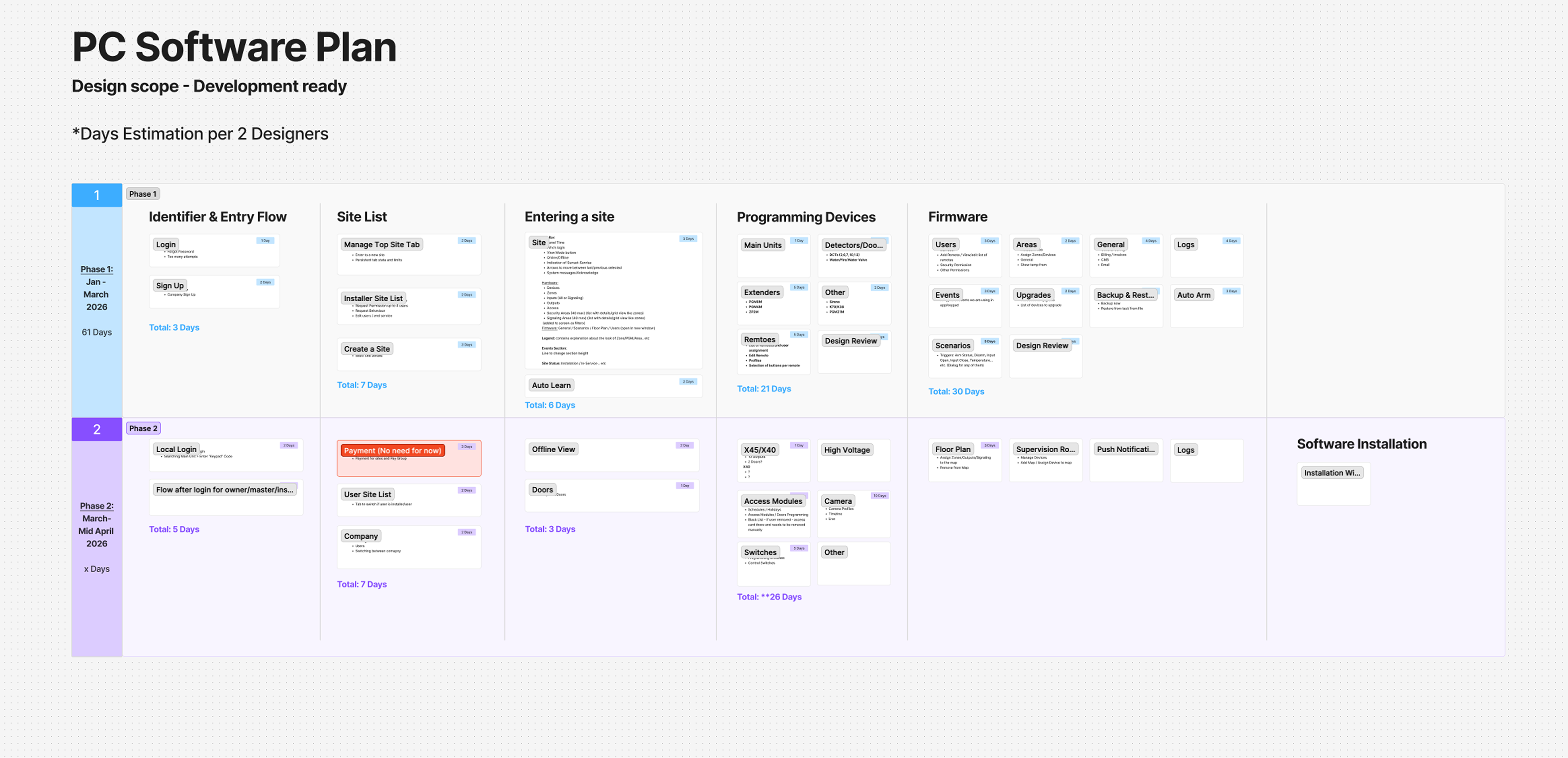
Mapping the full desktop product before designing screens
Before moving into detailed UI, we mapped the full PC software scope into phases, product areas, and estimated design effort. This helped the team understand what needed to be designed first, what could move later, and how a large desktop product could become development-ready without losing control of the overall system.
The full product included site management, device programming, firmware, users, areas, logs, events, doors, access modules, schedules, software installation, diagnostics, monitoring, and automation.
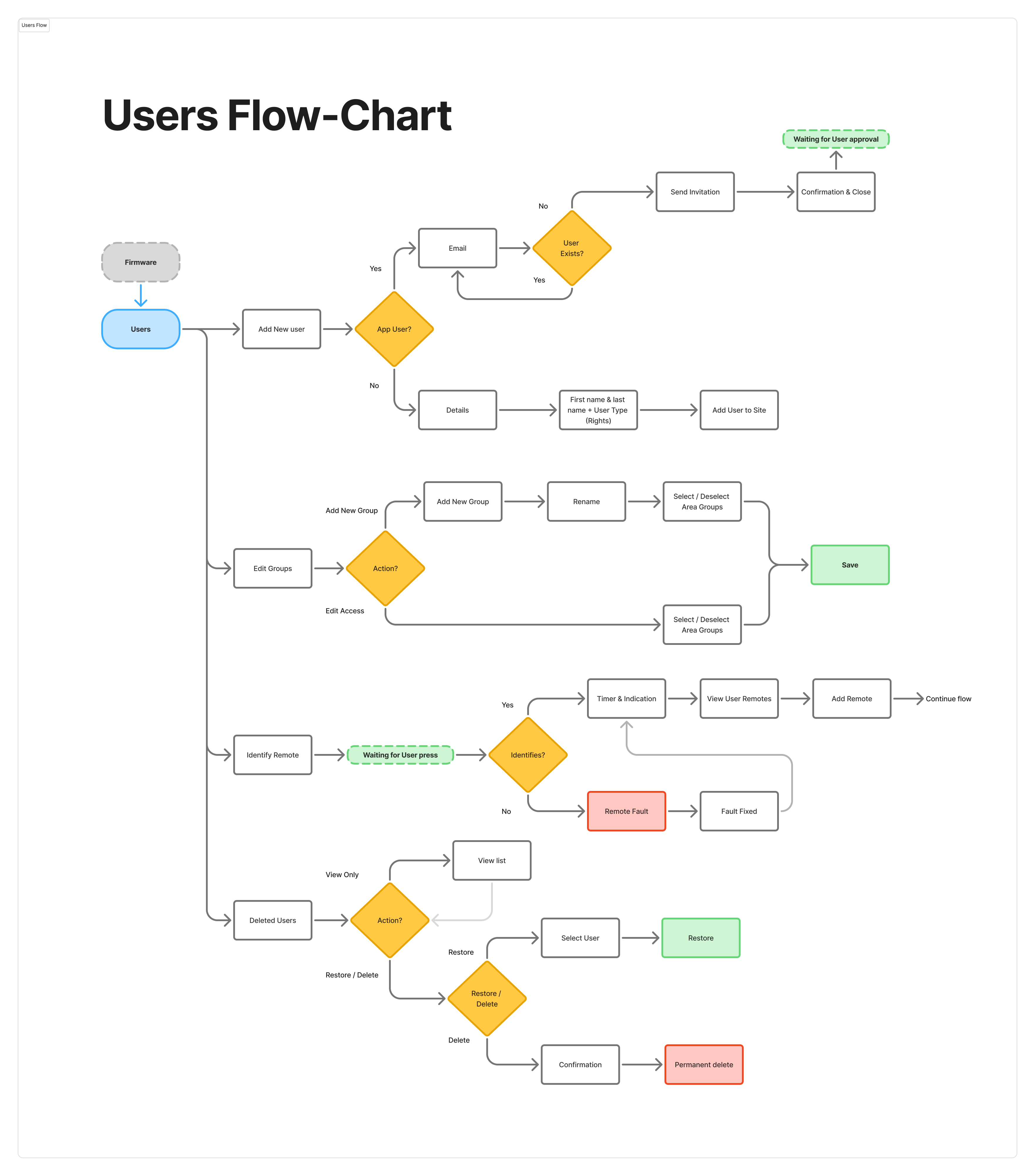
Part of the flow-chart we made for the PC software — mapping each user-management path before designing screens.
Carrying installer lessons from mobile to PC
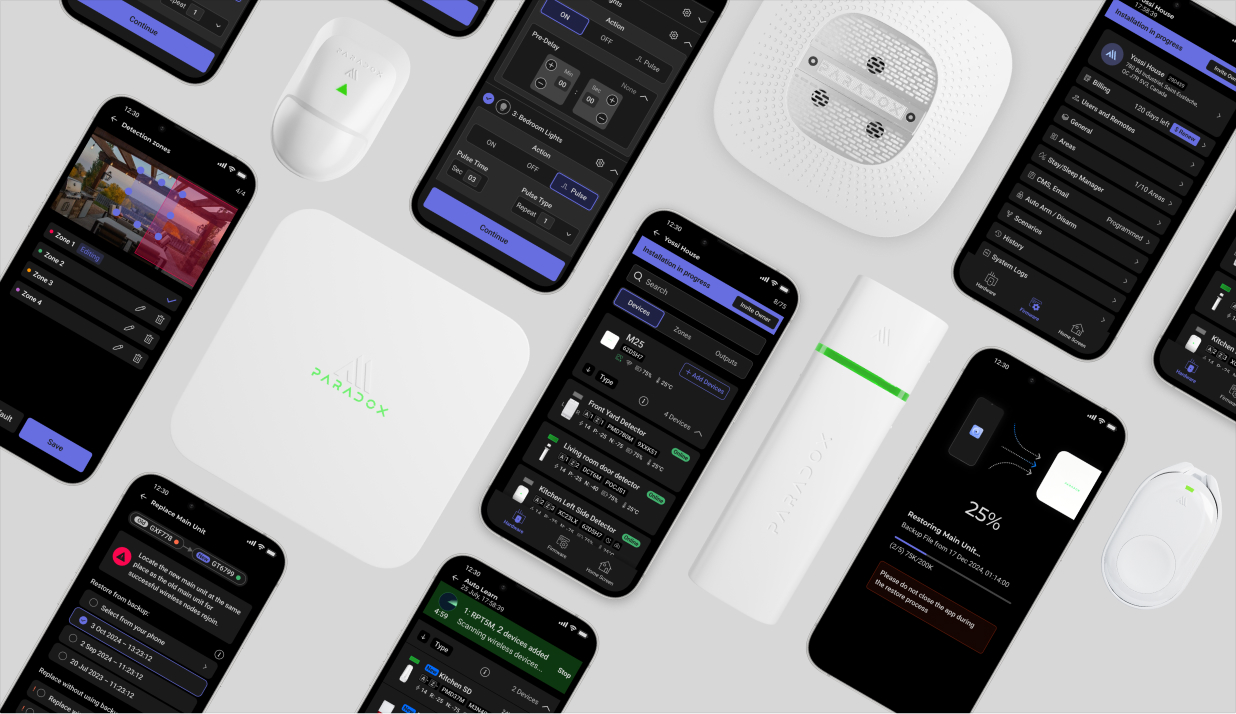
Many of the problems we identified in BlueEye PRO carried into Hummingbird, but at a larger scale. In the mobile installer experience, we learned that installers needed clear feedback around installation progress, device status, unresolved issues, and the moment a site is ready to hand over to the owner.
In Hummingbird, those same questions became more complex. The PC product had to support deeper configuration, more devices, more zones, monitoring, automation, live statuses, local save flows, and panel interaction. The lesson was clear: the product could not rely on installers remembering the state of the system. It had to make that state visible.
Exploring the right desktop model
The iterations moved between two extremes: preserving the density of the legacy PC tool and borrowing clarity from the mobile app. The final direction came from combining both — a desktop-native workspace that supports professional density, while using the product language and design system to create a clearer, more consistent experience.
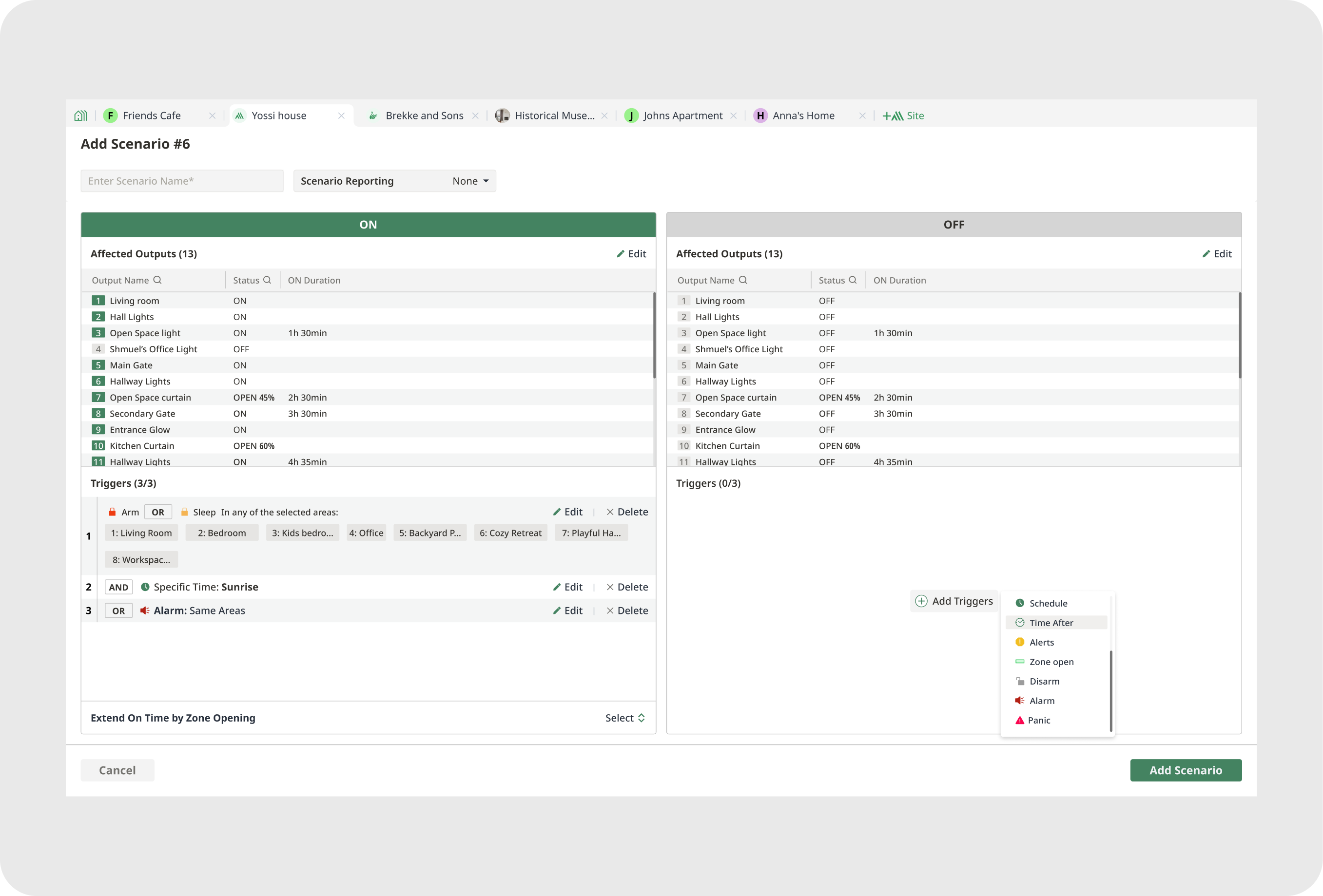
Legacy-inspired direction
What we learned: expert users need density, fast scanning, tables, and direct access.
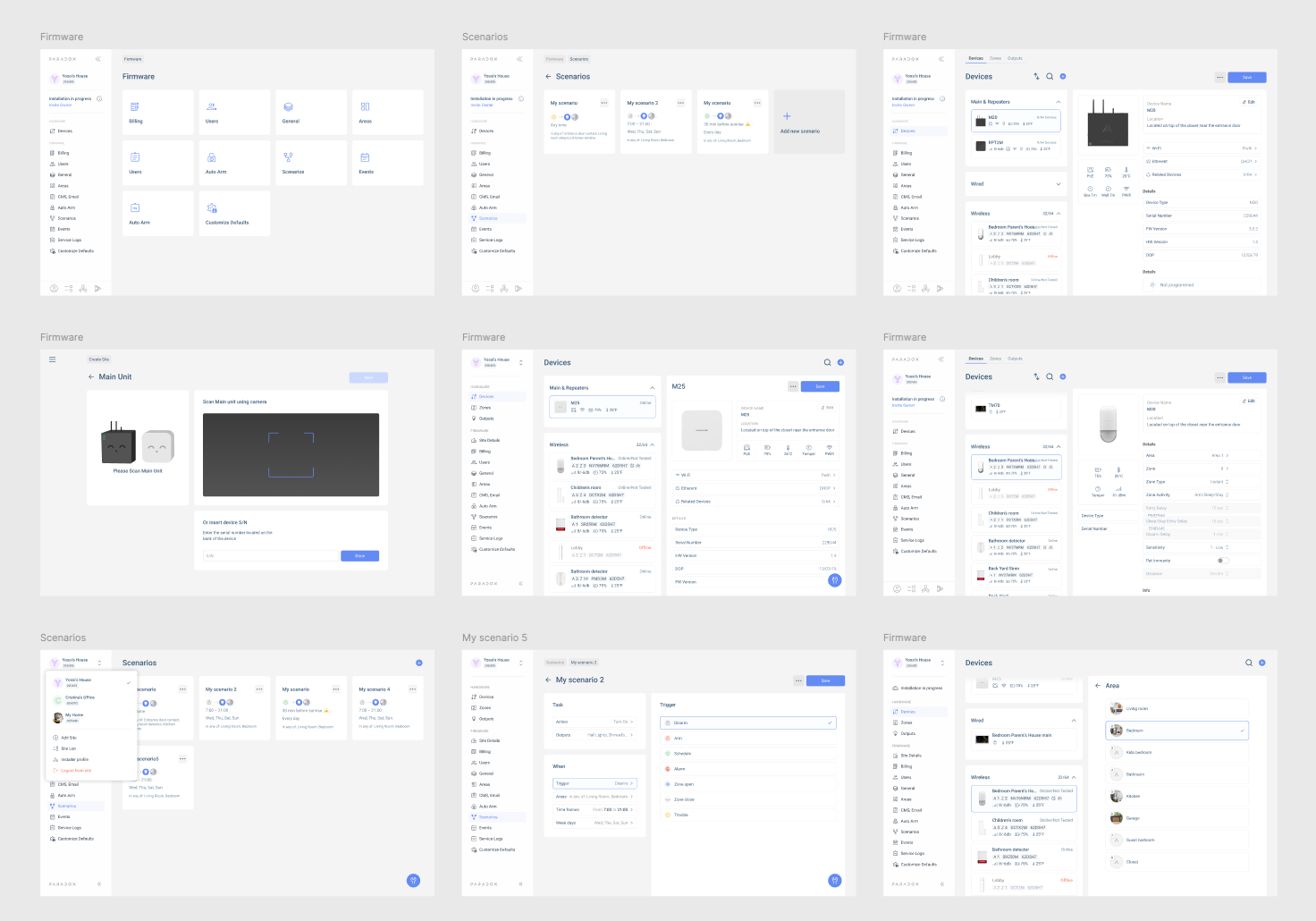
App-aligned direction
What we learned: the mobile product language improved clarity, but could not fully support deep desktop configuration.
Hybrid behavior testing
What we learned: cards and grouped controls worked well for monitoring, but deep configuration still needed tables, split views, local save behavior, and details panels.
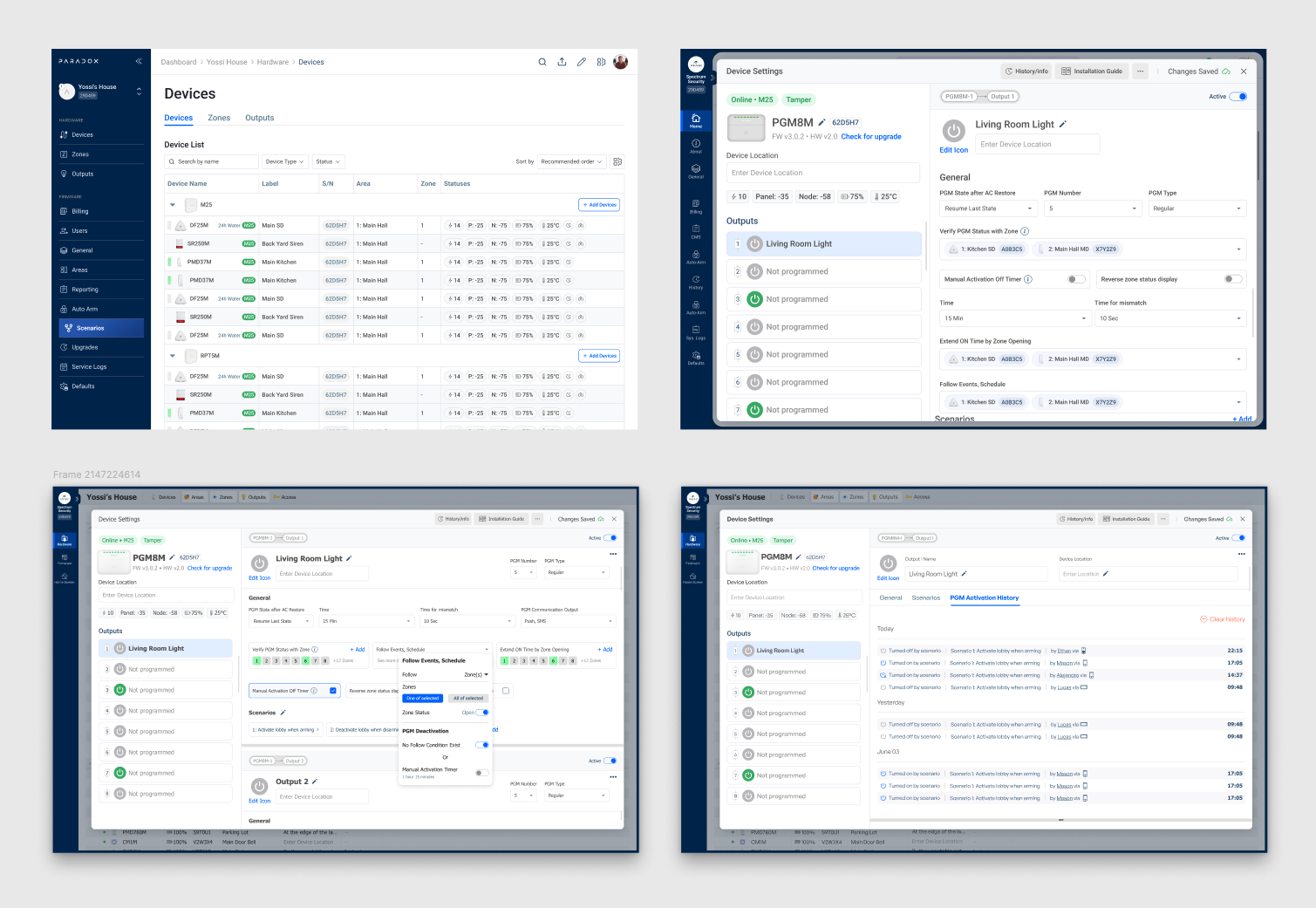
AI layout exploration
What we learned: AI helped us compare layout trade-offs faster — orientation vs density, overview vs editing, visibility vs focus, and status visibility vs configuration depth.
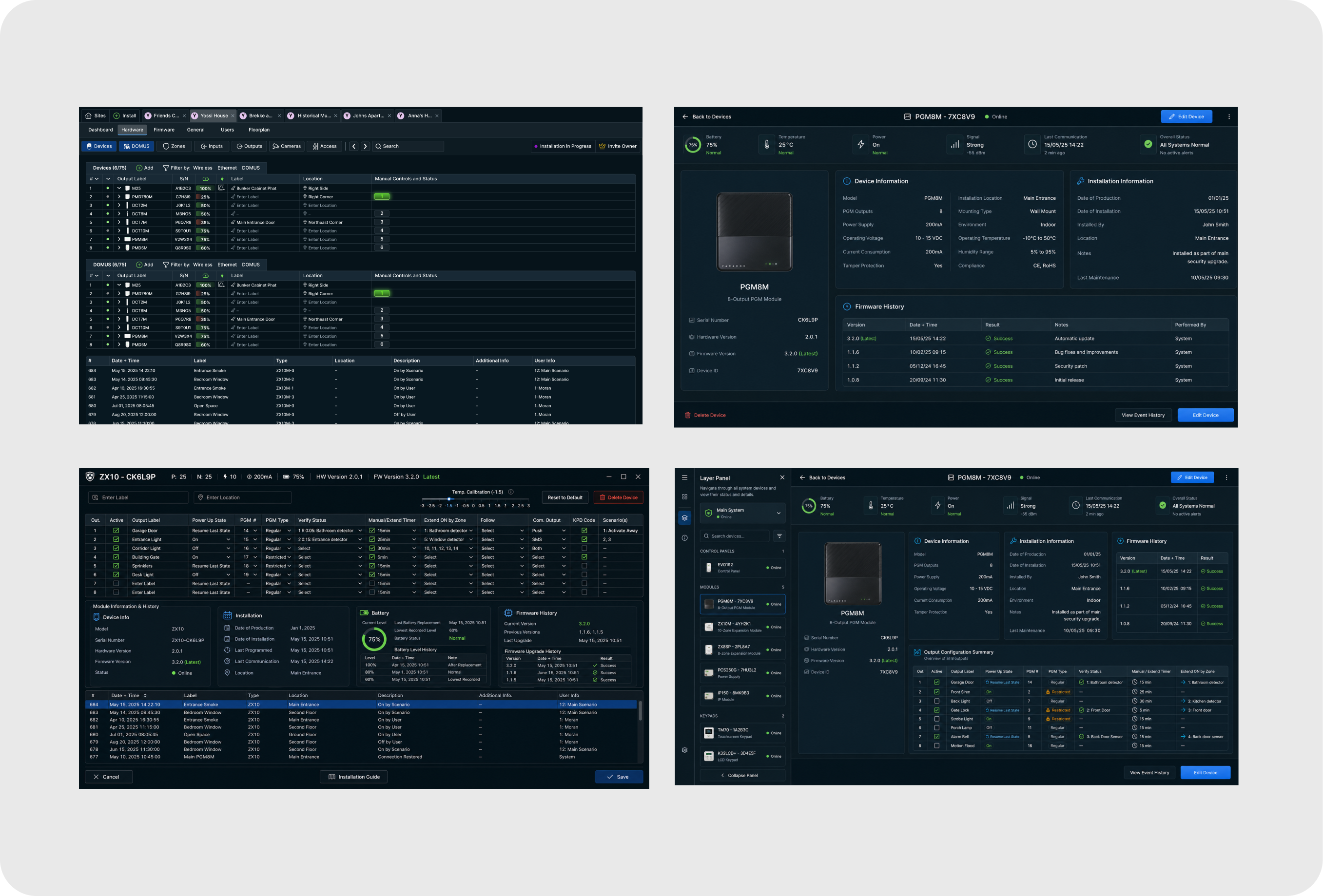
Claude component exploration
What we learned: the most useful AI outputs were not always full screens. They were smaller interaction patterns that helped reveal what the product needed to repeat, standardize, and scale.
Using AI to explore complexity faster, not to skip product thinking
For Hummingbird, AI became part of the design process, not a shortcut around it. We used AI-assisted workflows to explore complex layout structures, test information hierarchy, generate interface directions from real product requirements, and connect the design system to faster screen production inside Figma.
AI helped expand the option space. Design judgment narrowed it.
Building Nest
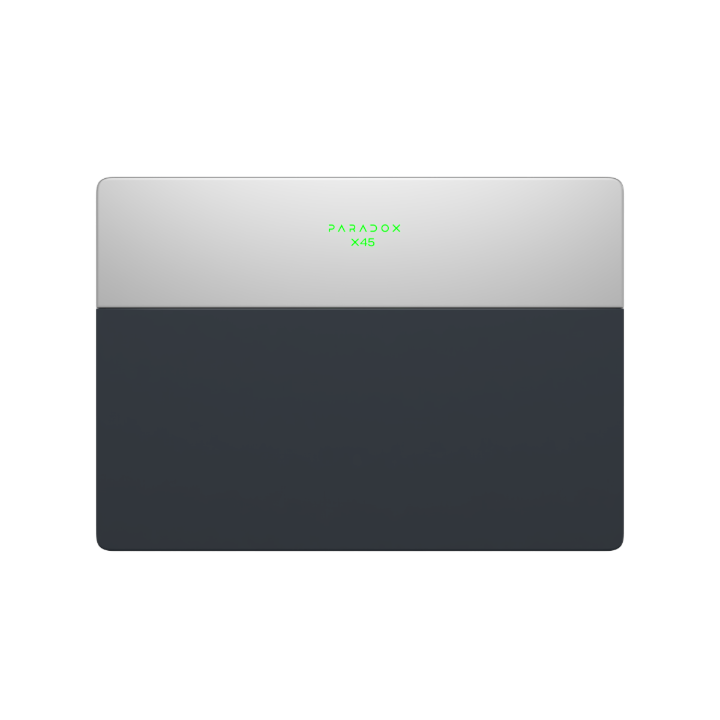
To support a product this broad, we started building Nest, the design system behind Hummingbird. Nest was not only a visual library. It was designed as a shared structure between Figma and implementation, with tokens, components, device assets, reference screens, and AI-assisted scripts that helped keep design and code aligned.
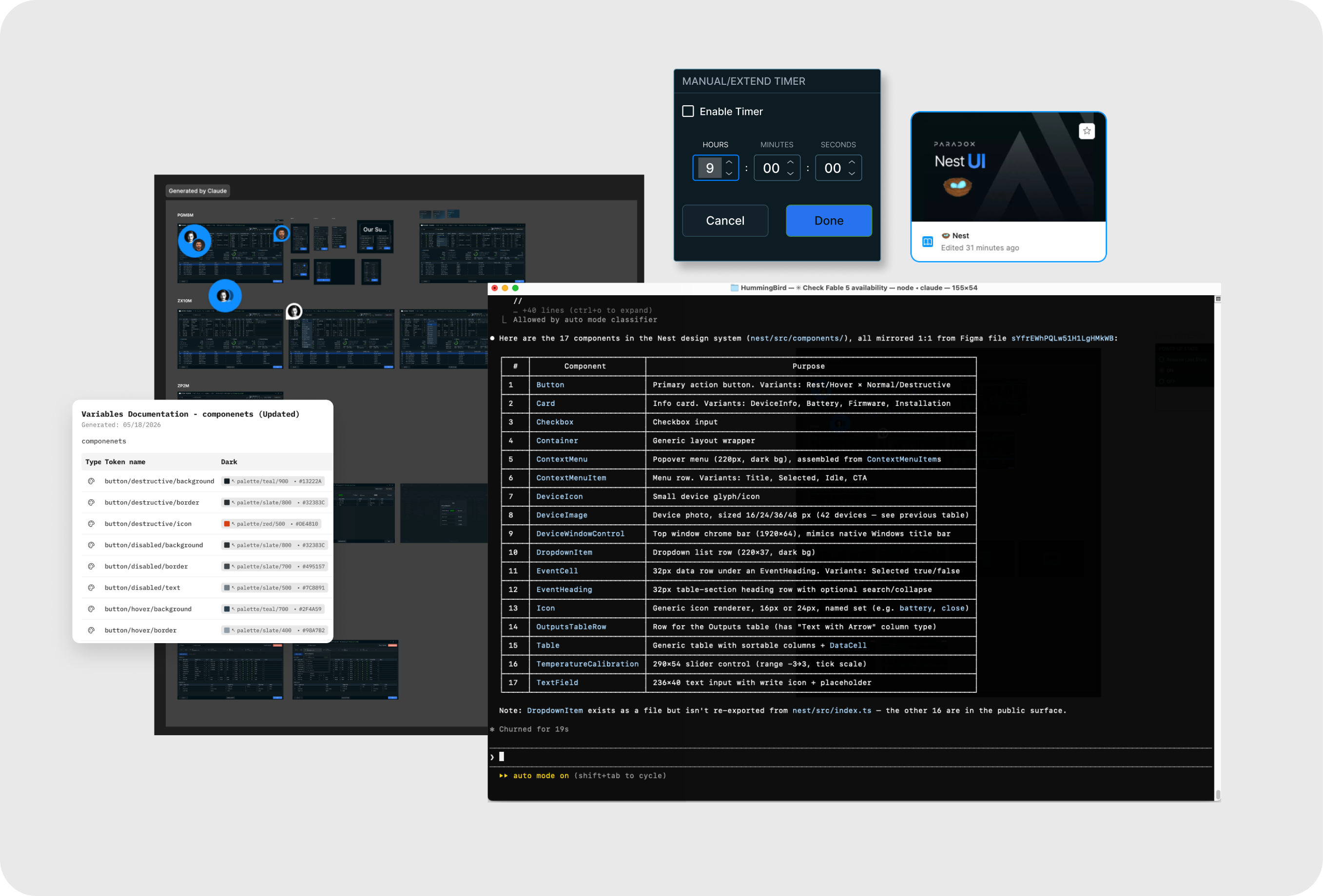
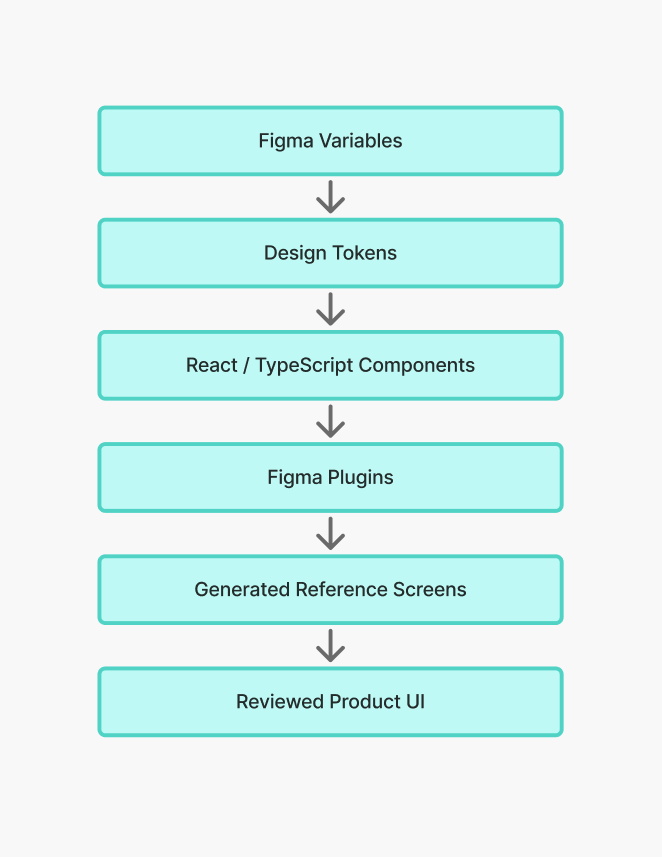
AI helped us explore faster, but it also introduced a new coordination problem. Figma (or any other SOT software) was no longer the only source of truth. Every manual change in the design file had to be reflected back into Claude’s context, otherwise the AI would continue generating from an outdated understanding of the product.
Generating isolated screens was fast. Maintaining a consistent sequence of screens was much harder. At one point, the AI workflow became a bottleneck, so we returned to manual design for the critical screens while continuing to train Claude in parallel.
The future workflow is not AI instead of design. It is AI, Figma (or any other SOT software), design systems, and human judgment working from the same source of truth.
The decisions that shaped professional confidence
Before defining the desktop patterns, we carried forward an important lesson from BlueEye PRO: installers do not only need access to configuration — they need confidence that the system is progressing correctly. That lesson shaped the direction: the PC workspace had to make progress, required configuration, live statuses, troubles, system messages, local save state, and handoff readiness visible across a much larger product surface.
Break large batch programming into smaller save moments
In the legacy workflow, a large amount of configuration could be sent to the panel as one big batch. When something failed, the installer had limited clarity about what succeeded, what failed, and what needed to be repeated. In Hummingbird, we moved toward a smaller and safer save model: enter a device, configure it, save it, and keep feedback close to the place where the work happens.
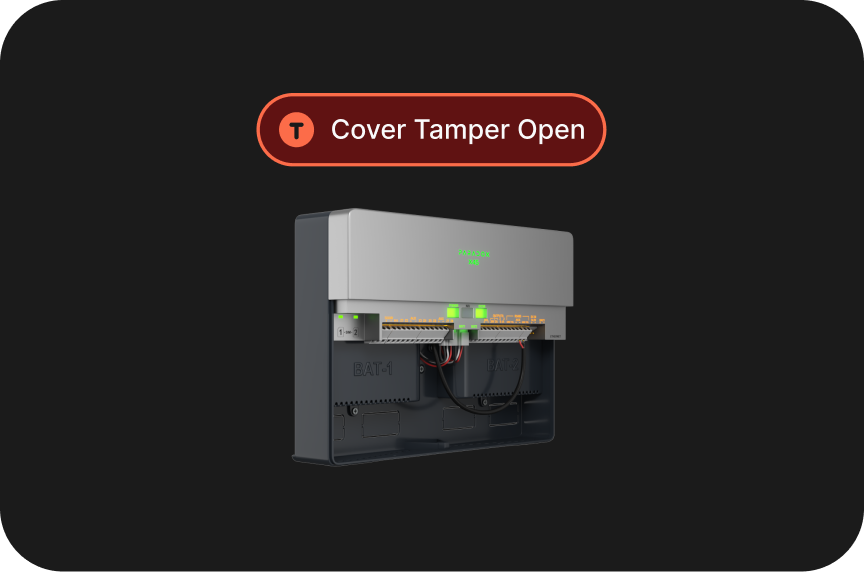
Keep statuses, indications, and troubles live
A professional installer should not have to leave the current workflow to understand the state of the system. Hummingbird keeps statuses, indications, troubles, and system messages visible in real time, close to the relevant object. Instead of asking installers to search for problems after configuration, the interface surfaces what needs attention while they are still in context.
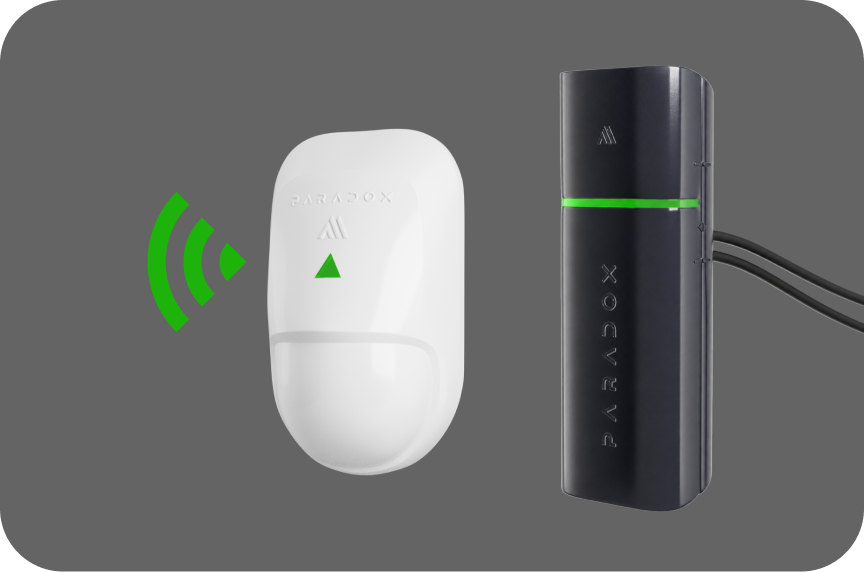
Make zone configuration understandable across source types
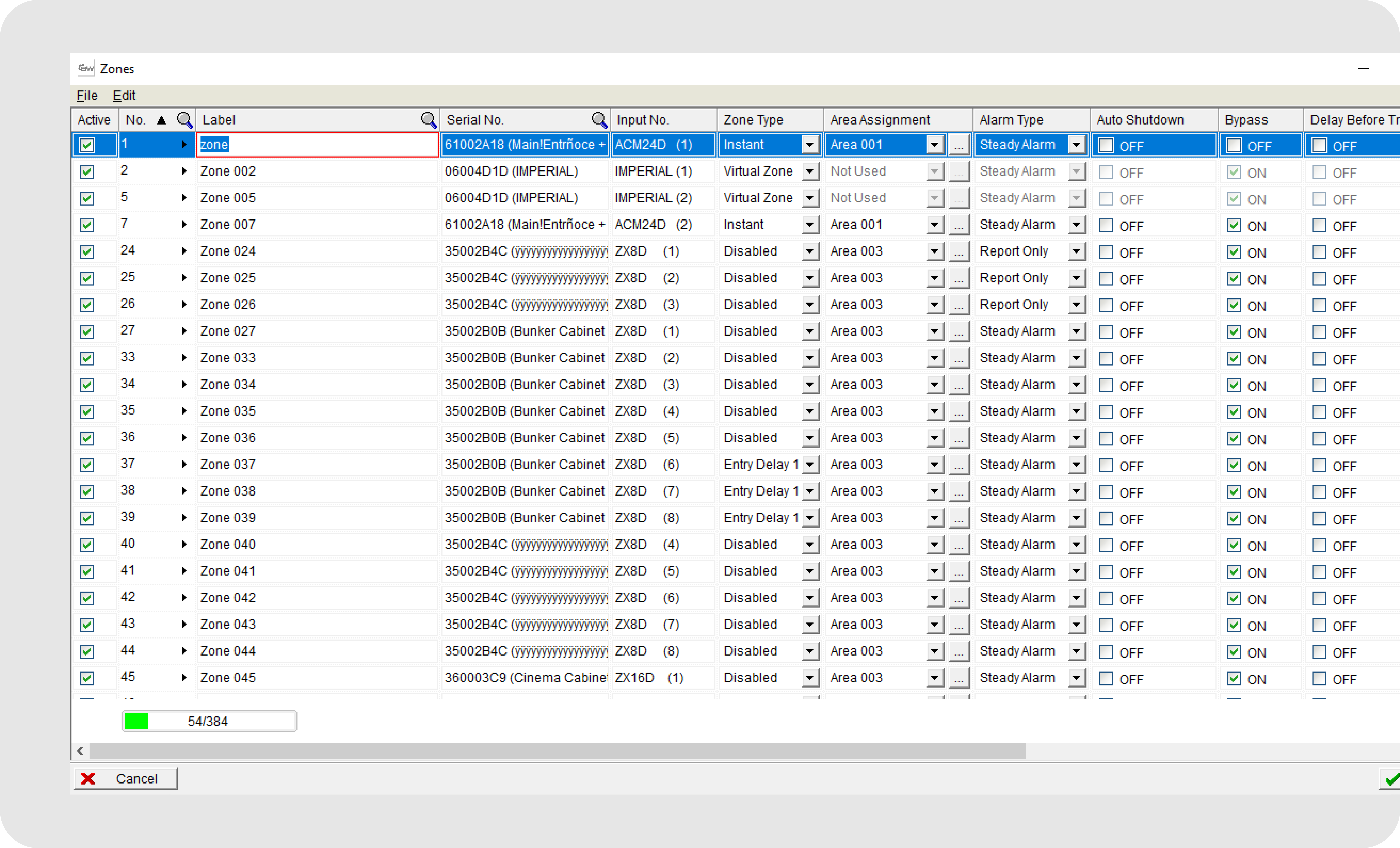
A zone is the security object the system monitors. A zone can come from a wired input, an RF device, or another supported device type. The interface needed one consistent configuration model, while still making the source and behavior of each zone clear.
Understanding zones and wired doubling
The zones table shows how zones are configured across the site and makes wired cases such as zone doubling visible. When one wired input is split into two zones, such as 2 and 2A, the installer can understand the relationship and configure each zone separately without losing context.
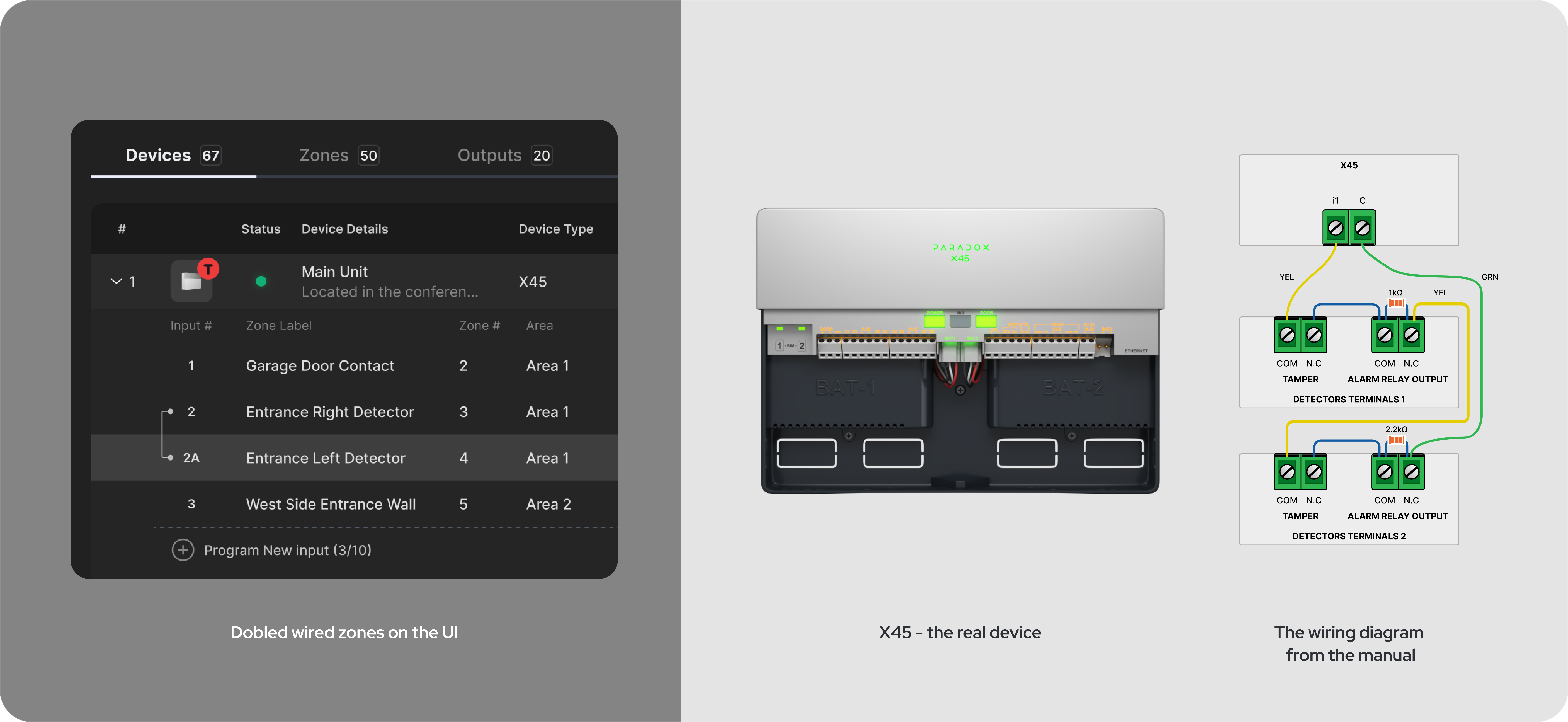
2 and 2A share the same wired input — but each zone is configured independently, mirroring the physical wiring on the X45.
Make site handoff explicit
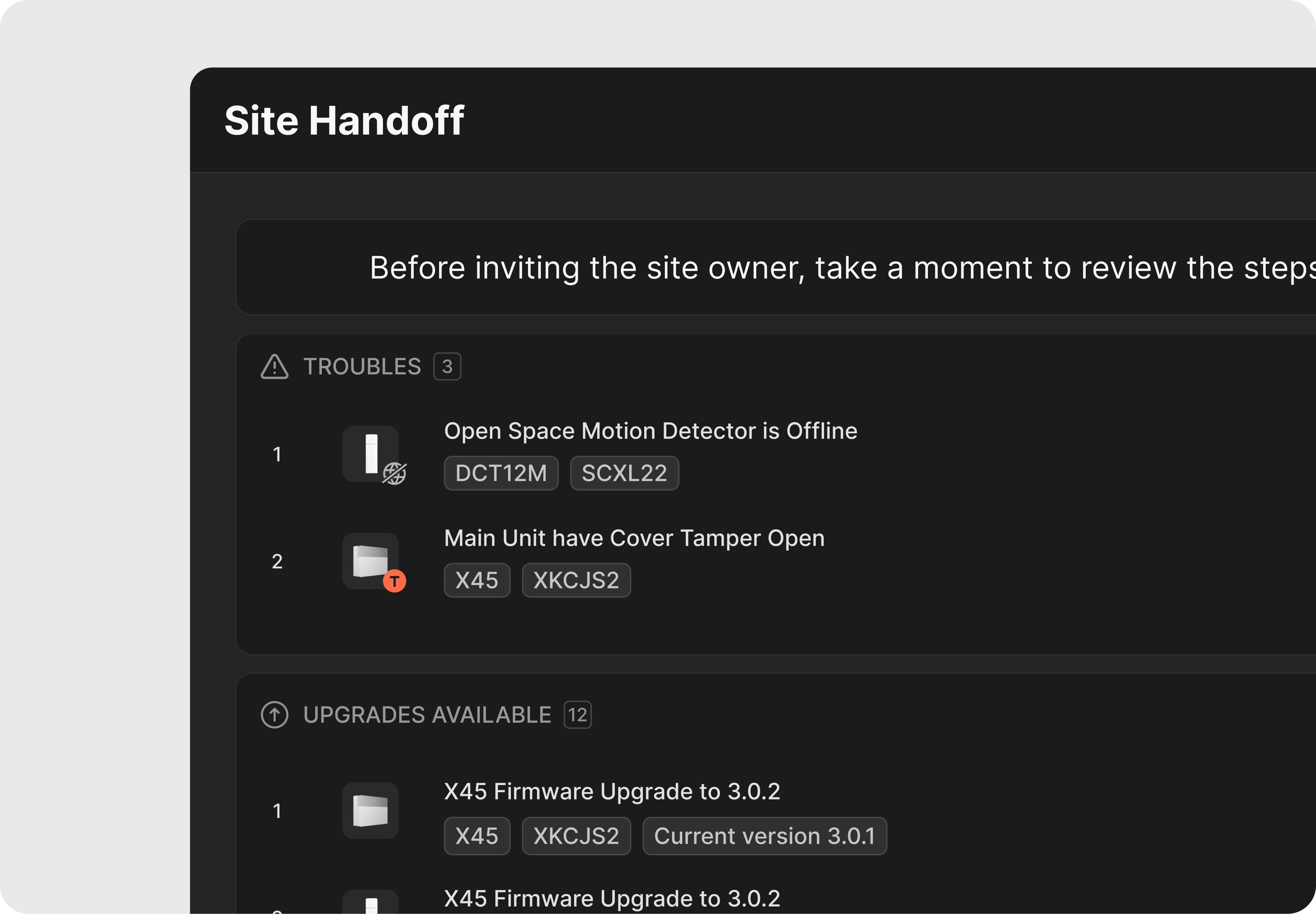
The installer’s work does not end when configuration looks complete. Before inviting the site owner, the system surfaces unresolved troubles, available upgrades, bypassed zones, and anything that could affect the owner experience. This extends a lesson from BlueEye PRO: handoff readiness must be visible before the owner is invited.
A desktop workspace built for professional control
The final direction shows how Hummingbird supports a professional installation workflow: configuring devices with local save and live feedback, making zones understandable across source types, handling wired zone doubling, monitoring security areas, controlling automation, reviewing system messages, and preparing the site before handing it off to the owner.
Configuring devices with local save and live feedback
The installer starts by entering a device workspace, reviewing its current status, configuring related zones, outputs, and settings, and saving changes closer to the object being edited. Instead of waiting for one large batch action at the end, the workflow keeps configuration, save state, status, troubles, and system messages visible while the installer works.
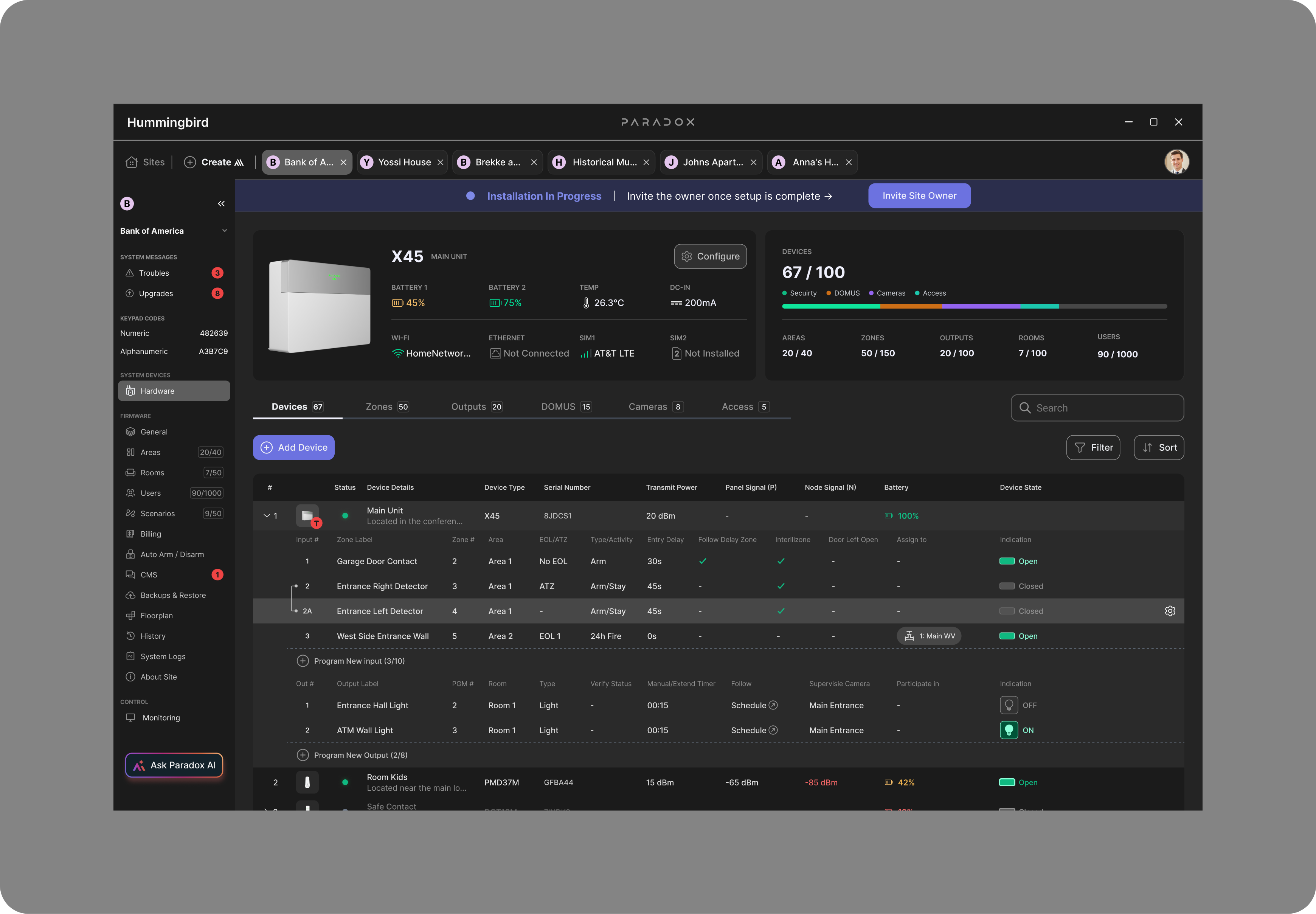
Configuration, save state, status, and troubles stay visible right where the work happens.
Reviewing the site before handoff
Before inviting the site owner, the installer reviews unresolved troubles, available upgrades, bypassed zones, and anything that could affect the owner experience. This turns handoff into a clear checklist instead of a blind final action, reducing the risk of transferring an incomplete site.
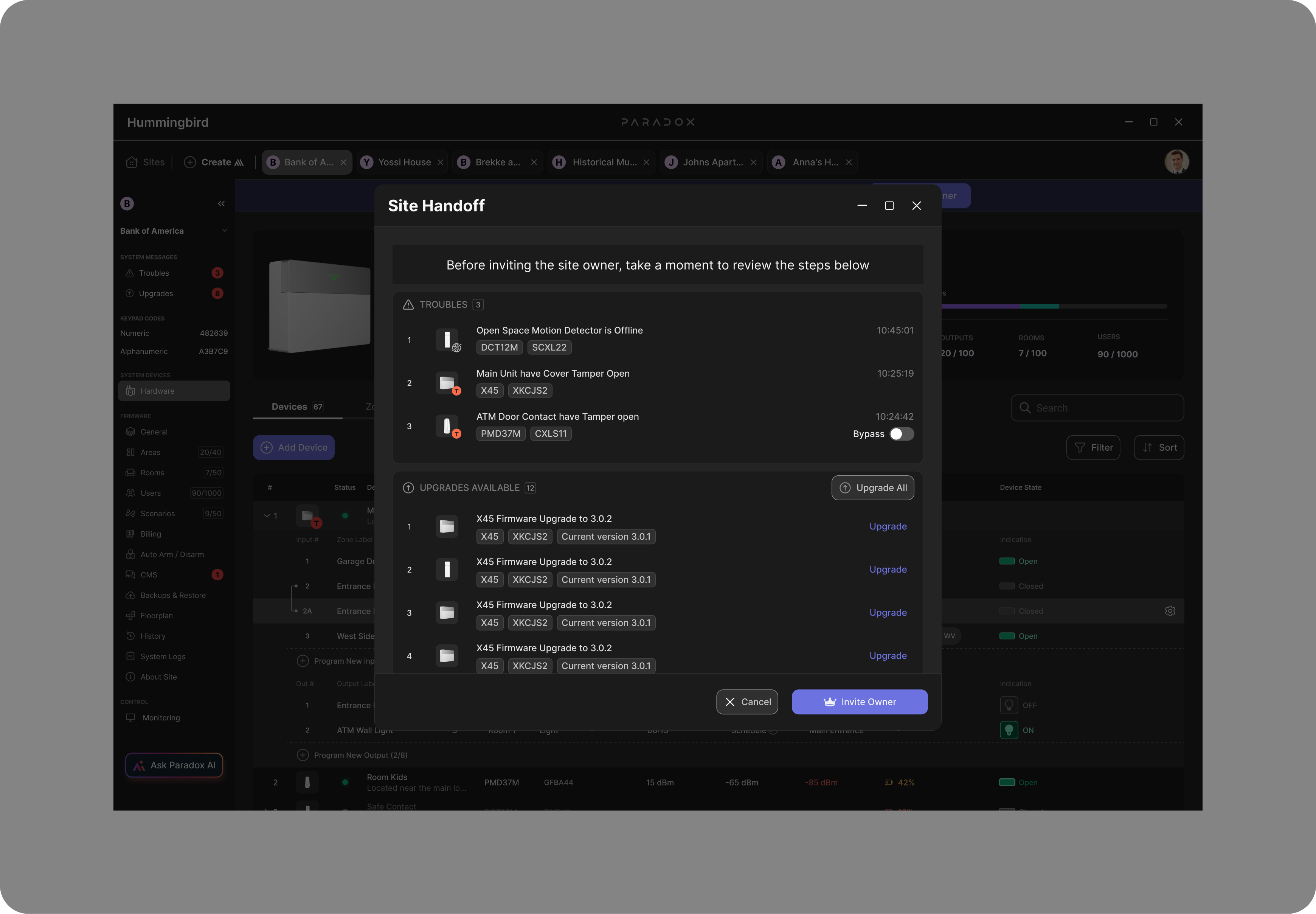
The final step of installation becomes a review moment before handing the site to the owner.
Monitoring security areas
After configuration, the same site can be monitored by security areas. Different areas can have different security states, and each area contains zones from different sources that need to remain visible at a glance.
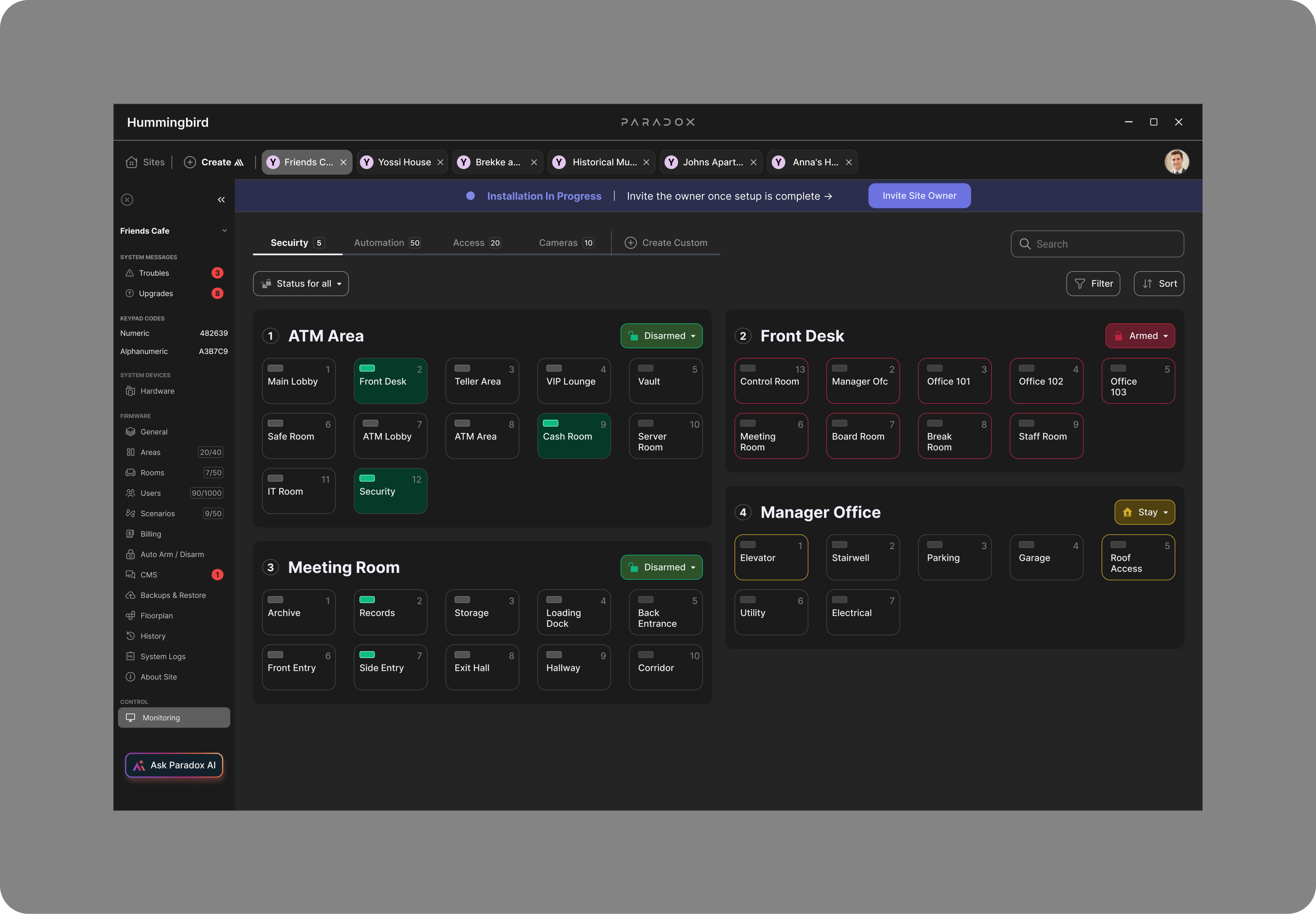
The same desktop product supports ongoing monitoring, not only configuration.
Controlling automation in context
The site is not only a security system. It can also include automation devices such as lights, dimming, shutters, garage control, and water valves. The automation view groups these controls by area, keeping quick actions accessible without mixing them into the deeper configuration workspace.
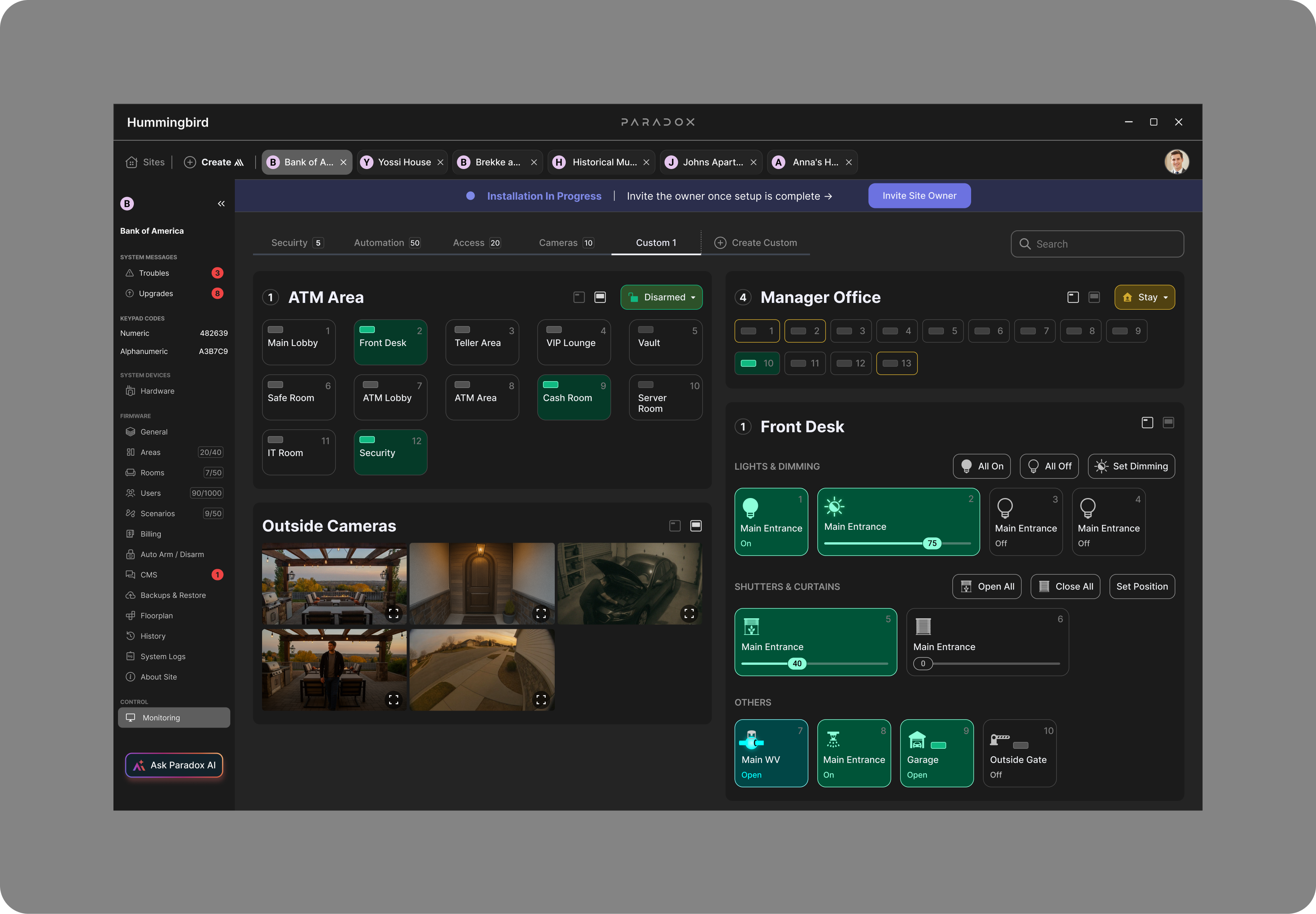
Hummingbird organizes many device types while keeping quick control accessible.
Deep output configuration
For deeper configuration, Hummingbird keeps device context visible while exposing detailed settings. The output details screen shows how installers can configure activation behavior, timers, zone verification, follow events, scenarios, and save actions without losing the device context.
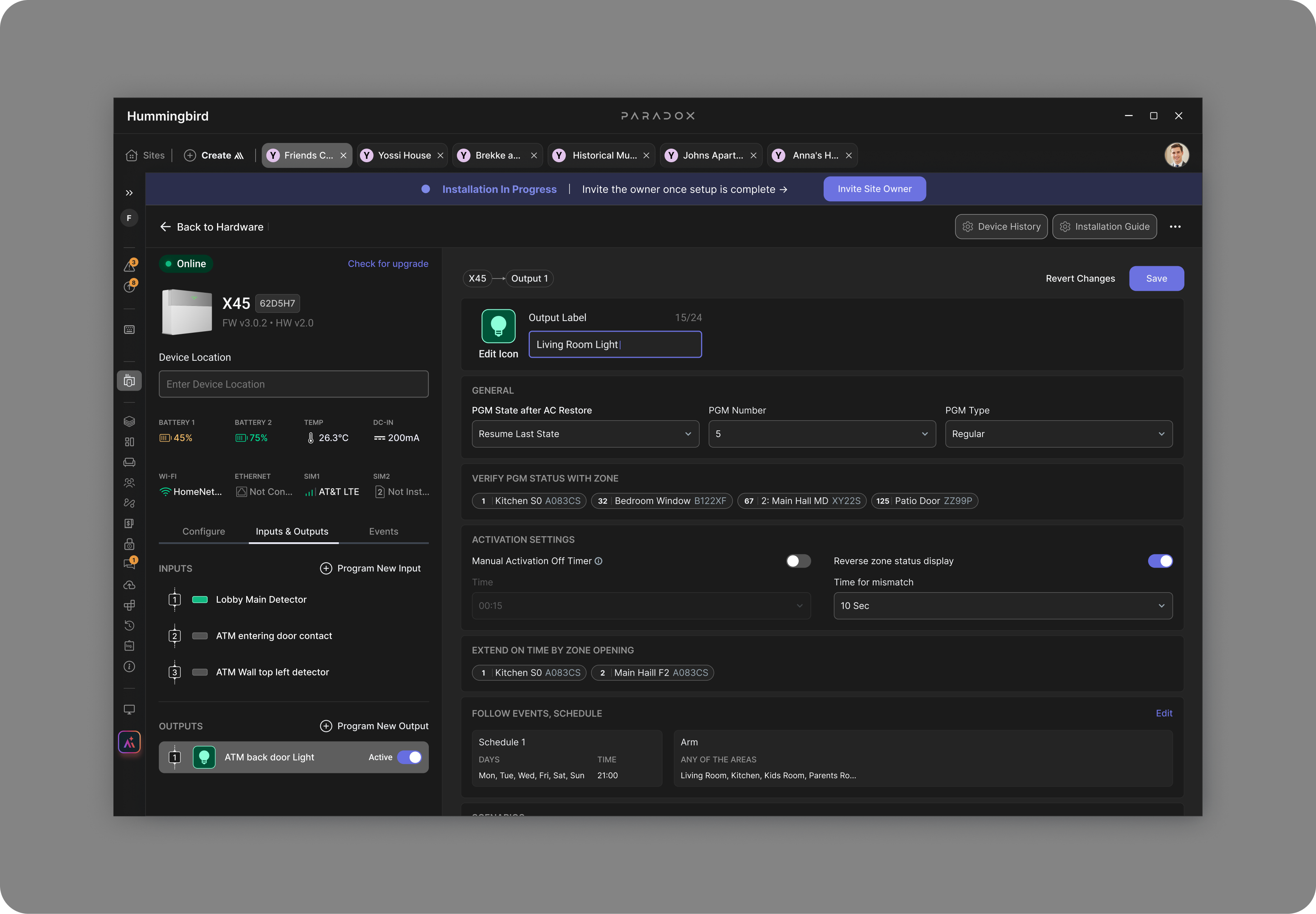
The details-panel model for deep configuration, while keeping device context visible.

Want to hear more?
Behind these screens are years of research, trade-offs, and decisions I couldn’t fit on one page. If you’d like to hear how it came together, I’m always happy to talk.
Contact via WhatsApp